How to Schedule Tweets on X (Twitter): The Ultimate Guide
Friday, May 30, 2025
How to Schedule Tweets on X (Twitter): The Ultimate Guide
Learn how to schedule tweets on X using desktop or third-party tools. Including steps on how to schedule a tweet on mobile for easy posting anytime.
How to Schedule Tweets on X
If you’ve been wondering how to schedule tweets on X, you’re not alone. X, otherwise known as Twitter, is one of the most active social media platforms, where timing can make or break your content’s visibility.
Maybe you’re the voice behind a brand on Twitter/X account, or you yourself are a content creator, or just someone tossing thoughts into the Twitter/X wind. That's why you, more than anyone, should know that consistently posting at the right time on Twitter/X is key to growing your audience. That’s where scheduling tweets on X comes in: it helps you save time, reach your audience when they’re most active, and stay consistent without being online 24/7.
In this comprehensive guide, we’ll walk you through everything you need to know about scheduling tweets on X. You’ll learn how to do it using the native X web platform, explore more advanced - and honestly better - options using third-party tools like Schedul, and get expert tips on the whole scheduling tweets on X thing. Let’s dive in!
Can You Schedule Tweets on X?
Yes, you can schedule tweets on X. Basically, there are two ways to do this: the platform offers built-in scheduling features via its web version, and there are also several powerful third-party tools available if you need more flexibility and functionality to scheduling tweets on X. Let's find out what these two ways are:
1. Native Scheduling on X (Web Only)
X allows users to schedule tweets directly from its web interface. This option is simple and effective for one-off posts (tweets), but it has a few limitations (which we’ll cover in a bit).
2. Third-Party Scheduling Tools
If you want more control over your social media strategy, third-party tools like Schedul can help. Schedul offers features like:
Bulk tweet scheduling
Smart scheduling with optimal posting times
Mobile access
In-depth analytics
Multiple account management
And more
How to Schedule Tweets Using X (Native Web Version)
If you’re looking for a simple way to schedule tweets without any extra tools, X’s built-in web scheduling feature is a great place to start. Follow these easy steps:
1. Log into X on Your Browser
Visit x.com and sign in to your account. Native tweet scheduling is only available on the desktop version, so make sure you’re not using the mobile app.
2. Compose a New Tweet
Click the black “Post” button or the text box that says “What’s happening?” to start writing your tweet. You can add text, links, images, GIFs, or videos, just like a normal tweet.
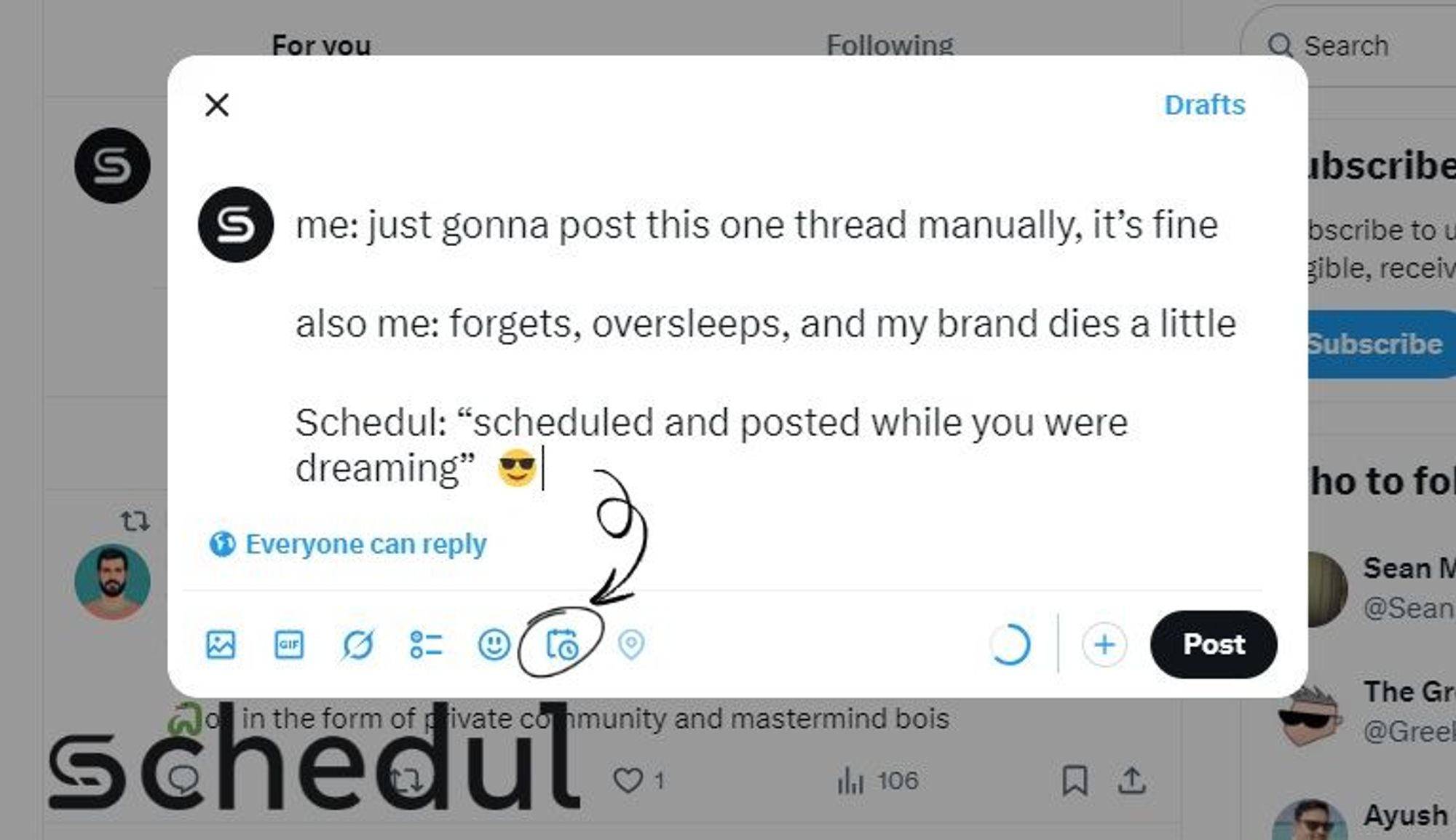
3. Click the Calendar/Clock Icon
Below the tweet composer, you’ll see a calendar/clock icon (🗓️). Click on it to open the scheduling menu.
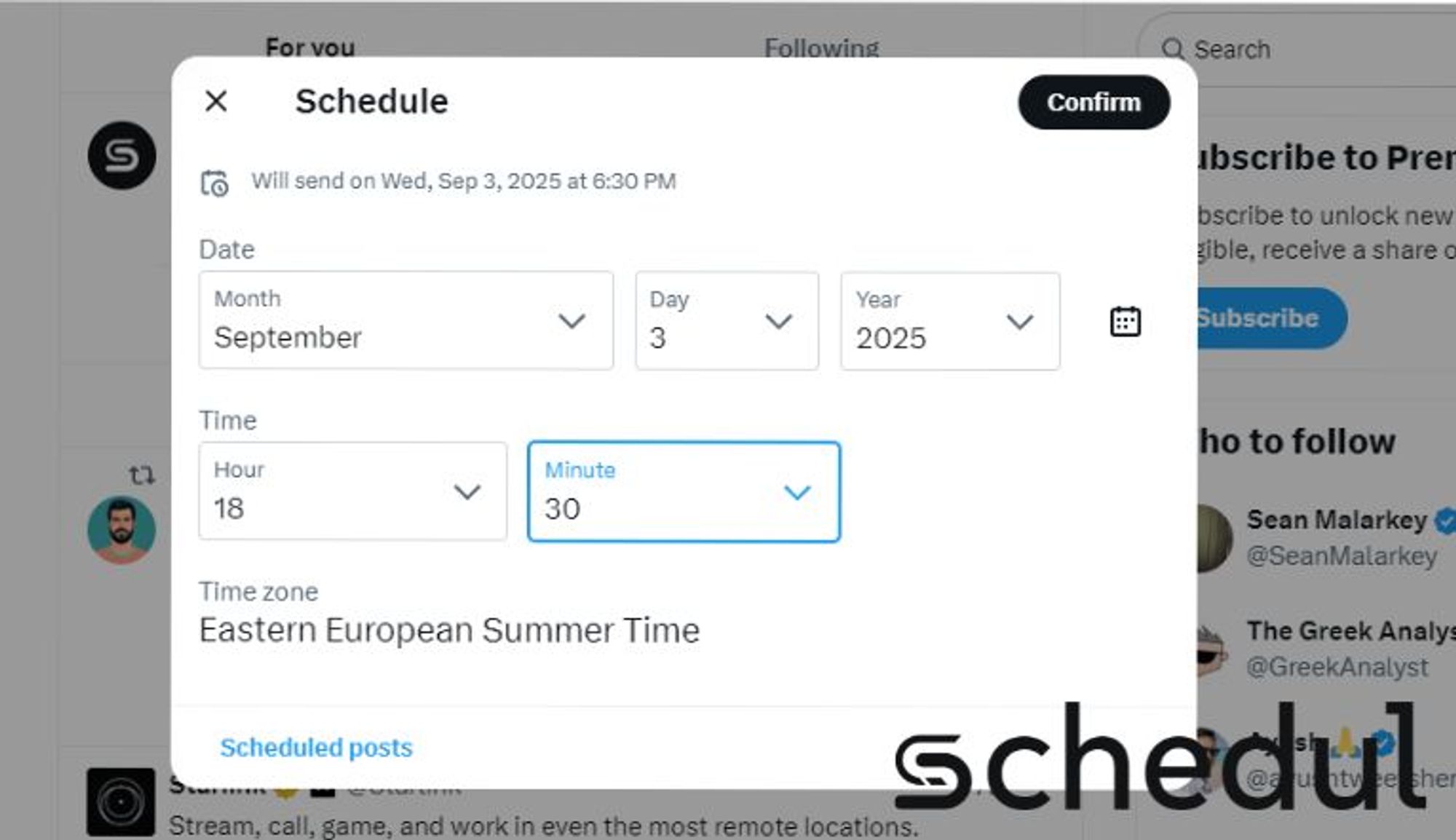
4. Choose Date and Time
A scheduling window will pop up. Select your desired date and time for the tweet to be published. The system uses a 24-hour clock and your local time zone. You can schedule tweets on X web version for up to 18 months in the future.
5. Confirm and Schedule
Once you’ve chosen the right time, click the “Confirm” button, then hit “Schedule” to queue your tweet.
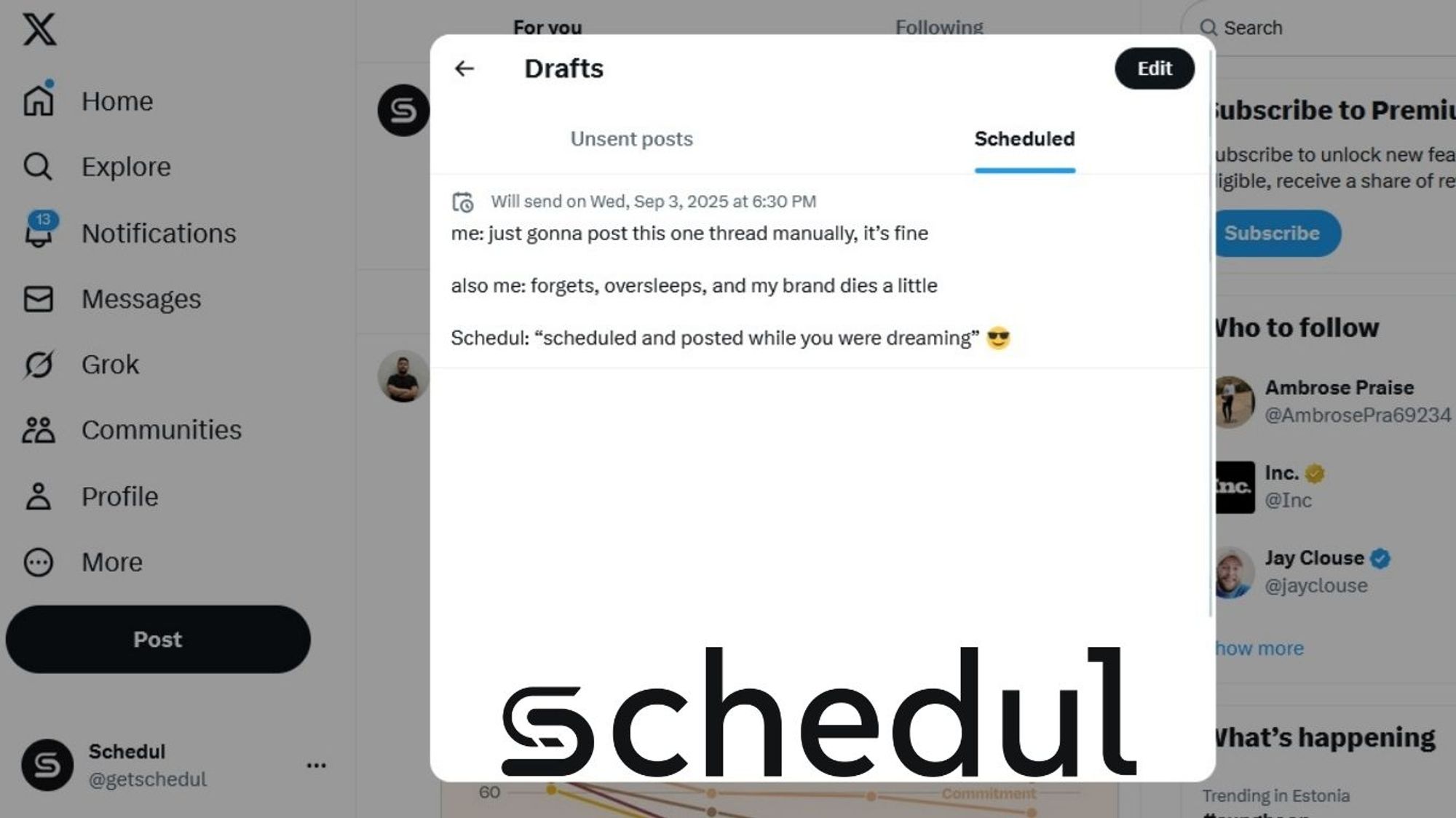
💡 Tip: Scheduled tweets are stored under the “Unsent Tweets” in the draft section, where you can review or edit them whenever you want.
And that's how you schedule tweets on X, desktop (web) version.
Limitations of Native Scheduling on X
While the built-in option is handy for quick scheduling, it has a few important limitations:
❌ No mobile support: You can’t schedule tweets from the X mobile app.
📊 Limited analytics: You won’t get detailed performance insights.
📋 No bulk scheduling: Each tweet must be scheduled manually, one at a time.
And many more.
If you need more robust scheduling features, automation, or multi-account management, it’s worth exploring third-party tools. We’ll show you how in the next section.
How to Schedule Tweets on X with Schedul: 3 Simple Steps
If you want to unlock the full potential of tweet scheduling, Schedul is the go-to tool. It’s designed specifically for X users who need more than just basic functionality. Let's explore how can you Schedul tweets on X for free?
Step 1: Sign in to Schedul and Connect your X Account For Free
The first step in scheduling your tweets on X is create an account at Schedul and choose between different pricing options based on your needs. Once signed in, create an “organization” and connect to your X/Twitter account. You can connect multiple accounts to Schedul.
Step 2: Click on "+ Compose". You'll Create Your Tweet Here
To schedule tweets on X, click on the “+ Compose” button. Make sure your X account is connected to Schedul. Once ready, you can schedule X posts by setting the exact date and time for them to go live.
Step 3: You Have Scheduled Your First Tweet on X
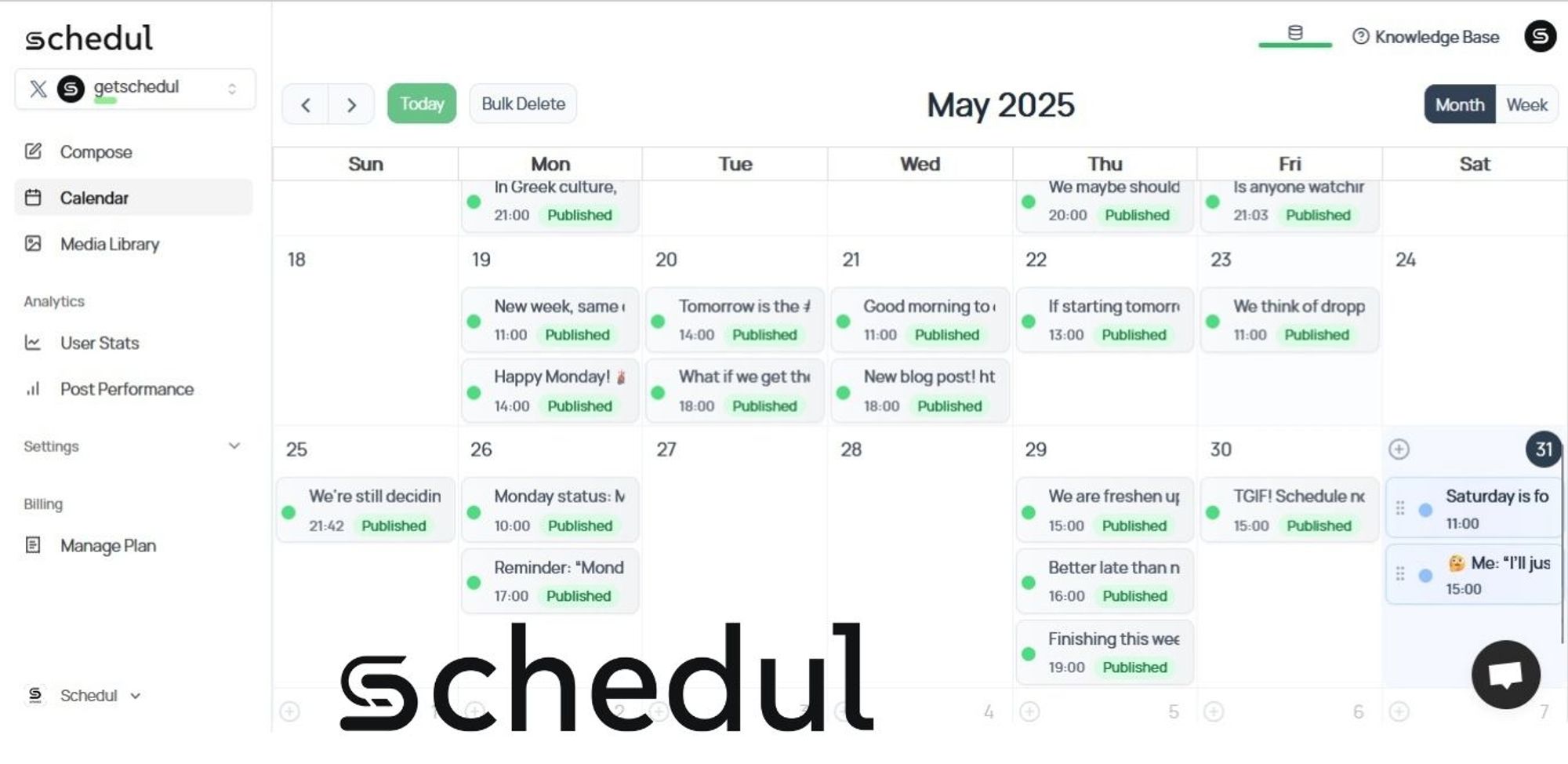
There you go! That was pretty easy, right? You have scheduled your first tweet on X post for a time and date of your choice. Now, sit back and let Schedul handle the posting for you. To view your scheduled tweets, head over to "calendar" section, right under "compose" to have a bird's view of all your scheduled tweets.
How to Schedule a Tweet on Mobile Using Schedul?
If you’re wondering how to schedule a tweet on mobile, the native X (formerly Twitter) app currently doesn’t support this feature. That’s where tools like Schedul come in handy. With Schedul’s mobile-friendly platform, you can easily schedule tweets on the go with no desktop or web version needed. Here’s a simple step-by-step guide on how to schedule a tweet on mobile using Schedul: If you’re wondering how to schedule a tweet on mobile, the native X (formerly Twitter) app currently doesn’t support this feature. That’s where tools like Schedul come in handy. With Schedul’s mobile-friendly platform, you can easily schedule tweets on the go, no desktop needed.
Here’s a simple step-by-step guide on how to schedule a tweet on mobile using Schedul:
Step 1: Log Into Schedul from Your Mobile Browser
Open your preferred mobile browser and go to Schedulethreads.com. Log in to your account using your credentials. There’s no need to download an app, Schedul is fully optimized for mobile use.
Step 2: Connect Your X Account (If You Haven’t Already)
If it’s your first time using Schedul, connect your X (Twitter) account by following the prompts. You can manage one or multiple accounts from the same dashboard.
Step 3: Tap the "+ Compose" Button
Once you're logged in, tap on the + Compose button to start drafting your tweet. This is also where you’ll enter your tweet content, add images, GIFs, links, or hashtags.
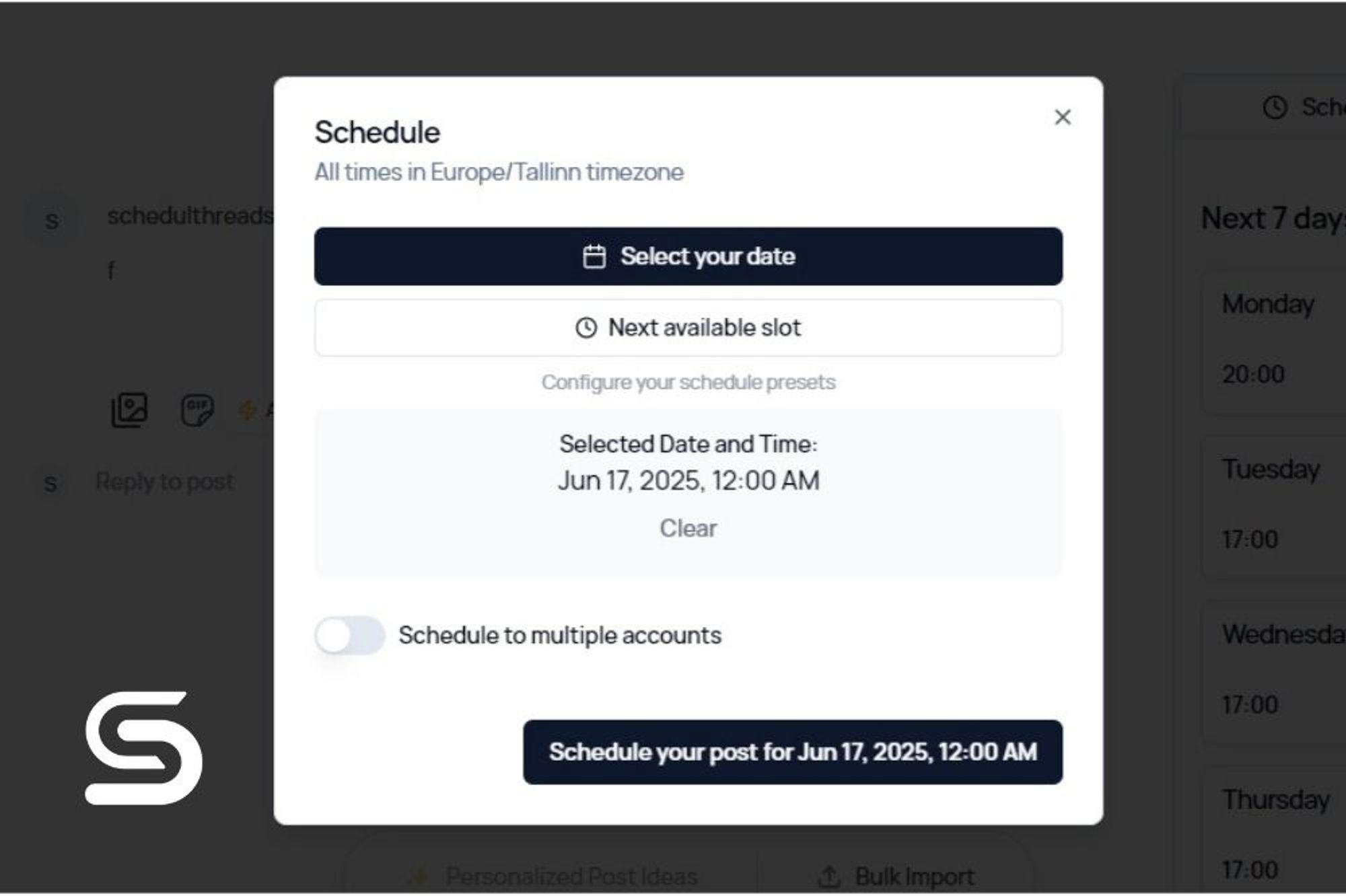
Step 4: Choose the Date and Time
On the top right corner, use the scheduling toolbar to select the exact date and time you want the tweet to go live. Or you can simply choose your tweet to go live in your next free slot (based on previous scheduling activity on Schedul).
Step 5: Hit “Schedule”
Once everything looks nice and ready, hit "schedule your post for ..." the time you have chosen. Your tweet is now queued and will be published automatically at your selected time. Now, sit back, relax, and reward yourself with a cup of tea, coffee, or your favorite treat; you've earned it mate!
How to View, Edit or Cancel a Scheduled Tweet
Even the most carefully scheduled tweet might need a last-minute update, or sometimes even cancellation. Whether you're fixing a typo, updating a link, or changing the timing, here’s how to edit or cancel a scheduled tweet on both the X platform and via Schedul.
How to
Editing or Deleting a Scheduled Tweet on X (Desktop Version)
If you used the native scheduling feature on X, follow these steps:
1. Click “Post” Head to the bottom-right of your X homepage and click the black “Post” button.
2. Go to “Drafts” In the Post window, click on “Drafts” in the upper-right corner of the composer.
3. Open the “Scheduled” Tab From the left-hand menu, switch to the “Scheduled” section to view your upcoming tweets.
4. Select the Tweet You Want to Change Click on the scheduled tweet you'd like to edit or cancel.
5. Edit, Reschedule, or Delete Make any changes and hit “Update” to save. Or, if you want to delete it entirely, click the trash icon.
Editing or Cancelling a Scheduled Tweet on Schedul
Schedul makes editing your upcoming posts fast and intuitive:
1. Open the Calendar View Go to your Schedul dashboard and switch to the Calendar view to see all your scheduled tweets.
2. Find and Select the Tweet Locate the post you want to change, then click on it to open editing options.
3. Choose to Edit, Reschedule, or Delete Update the content, change the scheduled time, or remove the tweet altogether, it's all just a click away.
Scheduling Your Tweets on X: Native Desktop vs. Schedul
When it comes to managing your Twitter (now X) presence, choosing the right scheduling tool can make a significant difference. Let's compare the native X desktop scheduler with third-party tools like Schedul to understand their capabilities and limitations.
Native X Desktop Scheduler
Pros:
Free and Integrated: Built directly into the X platform, allowing users to schedule tweets without additional software.
Basic Scheduling: Enables scheduling of individual tweets up to 18 months in advance.
Cons:
Limited to Desktop: Scheduling is only available on the web version; the mobile app doesn't support this feature.
No Bulk Scheduling: Users must schedule each tweet individually, which can be time-consuming.
Lack of Advanced Features: No support for scheduling threads, bulk tweets, quote tweets, or replies. Additionally, it lacks analytics and performance tracking tools.
No Collaboration Tools: Not suitable for teams needing to coordinate on content planning and approval.
Schedul: Advanced Third-Party Tweet Scheduler
Pros:
Bulk Scheduling: Allows users to schedule multiple tweets simultaneously, saving time and ensuring consistent posting.
Thread and Media Support: Users can schedule entire threads, including tweets with images, GIFs, or videos.
Advanced Analytics: Provides insights into tweet performance, helping users optimize their content strategy.
Calendar View: Offers a visual content calendar for better planning and organization.
Multi-Account Management: Supports managing multiple X accounts from a single dashboard.
Mobile Accessibility: Unlike the native scheduler, Schedul can be accessed via mobile devices, offering flexibility on the go.
Team Collaboration: Features tools for teams to collaborate, approve, and manage content efficiently.
Cons:
Subscription-Based: While offering a range of advanced features, Schedul requires a paid subscription.
If you're a casual users with minimal scheduling needs, the native X desktop scheduler might suffice. However, if you're a brand, or a social media manager for businesses, or simply you're looking to maintain a robust and consistent presence on X, investing in a third-party tool like Schedul can offer significant advantages in terms of time, efficiency, collaboration, and performance tracking.
Why Should You Schedule a Tweet on X Instead of Posting?
Scheduling vs. Posting Real-Time
While posting in real time allows you to react to trending topics instantly, scheduling your tweets on X has it own benefits. It helps you:
Maintain consistency, even during weekends or off-hours
Plan campaigns ahead of time
Avoid last-minute rushes
Reach global audiences across time zones
1. Save Time
Manually posting tweets throughout the day can eat up a lot of your precious time. Instead, scheduling lets you batch-create content in one sitting and have it go live automatically. Less stress and more engaging with your audience or focusing on other important tasks. Let your tweets work while you rest, snack, or conquer your to-do list.
2. Stay Consistent
Consistency is key on X, but life gets busy. Scheduling ensures your tweets go out regularly, even when you’re swamped or offline. No more ghosting your followers for days on end.
3. Test Out Different Strategies
When you schedule tweets on X, you gain the freedom to experiment. You can test different formats (text, polls, memes), vary tones (funny vs. serious), and track what resonates best. Instead of posting randomly, you're playing smart.
4. Post at Optimal Times
Your audience isn’t online 24/7—but you can be. Scheduling allows you to post when your followers are most active, even if that’s at 7 AM or during your lunch break. No need to wake up early or interrupt your day just to hit “Tweet.” Let the schedule do the work.
5. Set Up Evergreen Tweets
Some tweets are timeless: helpful tips, product promos, or a great intro to who you are. By scheduling evergreen tweets regularly, you keep your best content in circulation without sounding repetitive, or letting too much time pass between repeats. It’s like having your greatest hits on a smart loop for new followers to discover.
Now we know it’s not only possible, but often preferable for social media managers to schedule tweets on X.
Best Practices for Scheduling Tweets on X
Scheduling tweets is smart; but doing it right is even smarter. Here are some best practices to make sure your scheduled tweets don’t just fill the void, but actually spark engagement and growth:
✅ Don’t Under-Tweet
Posting once a week won’t cut it on a fast-moving platform like X. Scheduling helps you stay consistent: aim for a steady flow of content to stay visible and relevant in your followers’ feeds.
❌ Don’t Over-Tweet
On the flip side, flooding your audience with 20 tweets in a row can feel spammy. Don't do that. Use your scheduling tool to space things out thoughtfully - you can see how your day, week, or even month is looking like. Quality and timing matter just as much as quantity.
🎨 Use Media: GIFs, Videos, Images, and Polls
Text-only tweets are fine, but media-rich tweets almost always perform better. Mix it up with GIFs, visuals, polls, and videos to increase engagement. Schedul support all of this, so take full advantage.
💬 Don’t Just Schedule. Engage.
Scheduling should save you time, not disconnect you from your audience. Make time to reply to comments, quote tweets, and engage with your community. With Schedul, you can manage replies directly, no need to jump back and forth.
Yes, you can schedule tweets on X (formerly Twitter). The platform offers built-in scheduling via its desktop web version. However, this feature is not available on the mobile app, which is why many users turn to third-party tools like Schedul for more flexibility.
📲 How to schedule posts on X mobile?
Currently, the official X mobile app doesn't support scheduling posts. If you're on your phone and want to plan posts in advance, use a mobile-accessible tool like Schedul, which lets you create and schedule tweets (and even threads) on the go.
❌ Why won't Twitter let me schedule a tweet?
There are a few reasons why X (Twitter) might not let you schedule a tweet:
You're using the mobile app, which doesn’t support scheduling.
You haven’t clicked the clock/calendar icon in the tweet composer.
Try switching to the desktop version or use a third-party scheduling tool like Schedul for a smoother experience.
📱 How to schedule tweets on mobile?
To schedule tweets on mobile, you’ll need a third-party app like Schedul. Here’s how:
Log into your Schedul account from your mobile browser or device.
Tap “Compose” to create your tweet.
Select the date and time.
Hit “Schedule”, and you're done!
The X mobile app does not support scheduling natively, which makes tools like Schedul essential for mobile scheduling.
🛑 Can you no longer schedule tweets?
Yes, you can still schedule tweets, but only through the X desktop web interface. There’s a common misconception that the feature has been removed—this likely comes from users trying to access it via mobile. If you're on your phone, you'll need an external tool like Schedul to schedule your tweets.
📉 Do scheduled tweets get less views?
No, scheduled tweets do not inherently get fewer views. What matters more is when and what you post. In fact, scheduling allows you to post at optimal times, increasing the chances of engagement. With tools like Schedul, you can even analyze performance to fine-tune your timing strategy.
📲 Can I schedule a tweet from my phone?
Yes, but not using the native X app. If you're on your phone, the only way to schedule tweets is through third-party scheduling tools like Schedul, which are fully mobile-compatible. You can compose, schedule, and even edit your tweets directly from your device.
🧵 Can I schedule threads or multiple tweets at once?
The native X platform does not support thread scheduling. If you want to schedule a tweet thread or multiple tweets in bulk, you'll need a third-party platform like Schedul that supports bulk scheduling through CSV files, thread planning, and calendar views.
🔄 Can I edit a scheduled tweet?
Yes, on both X desktop and Schedul.
On X desktop, go to “Unsent Tweets” > “Scheduled” > edit or delete.
On Schedul, simply click the scheduled tweet in your calendar and make changes.